





The Parts Library is your central hub for managing every part and mold you’ve purchased through Fictiv. Instead of searching through old orders or quotes, you can quickly find, review, and reorder the parts you need to keep projects moving forward.
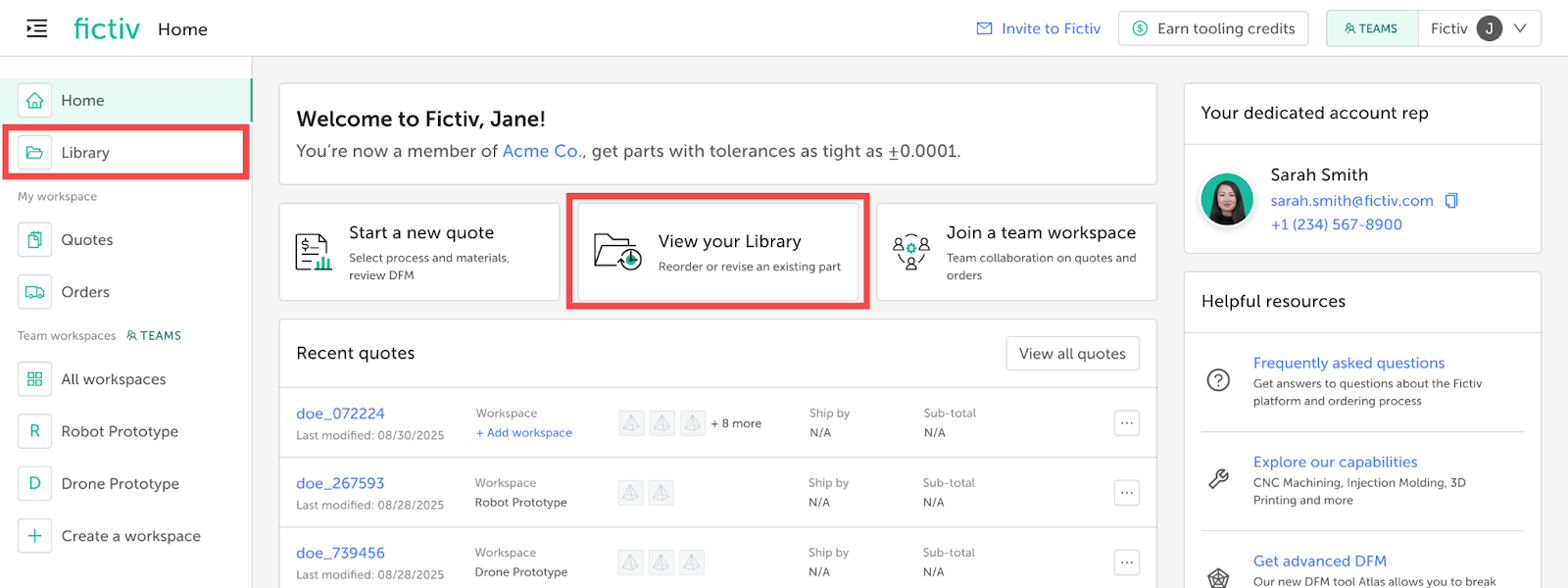
You can access your Library by clicking on the Library item in the left-hand navigation menu or clicking View your Library on your homepage [Fig. 1].
What can you do with the Parts Library?
- Track revision history: Review design updates with a full revision history for each part.
- View order and quote activity: Access related order and quote details directly from each part record.
- Reorder individual parts: Place new orders for specific parts without recreating entire quotes or orders.
- Share parts with team workspaces: Give your team access to part details, history, and quotes for better collaboration.
Getting started
Your Parts Library is automatically built as you purchase through Fictiv—no setup required.
Finding a specific part
There are two ways to find a specific part in your Parts Library.
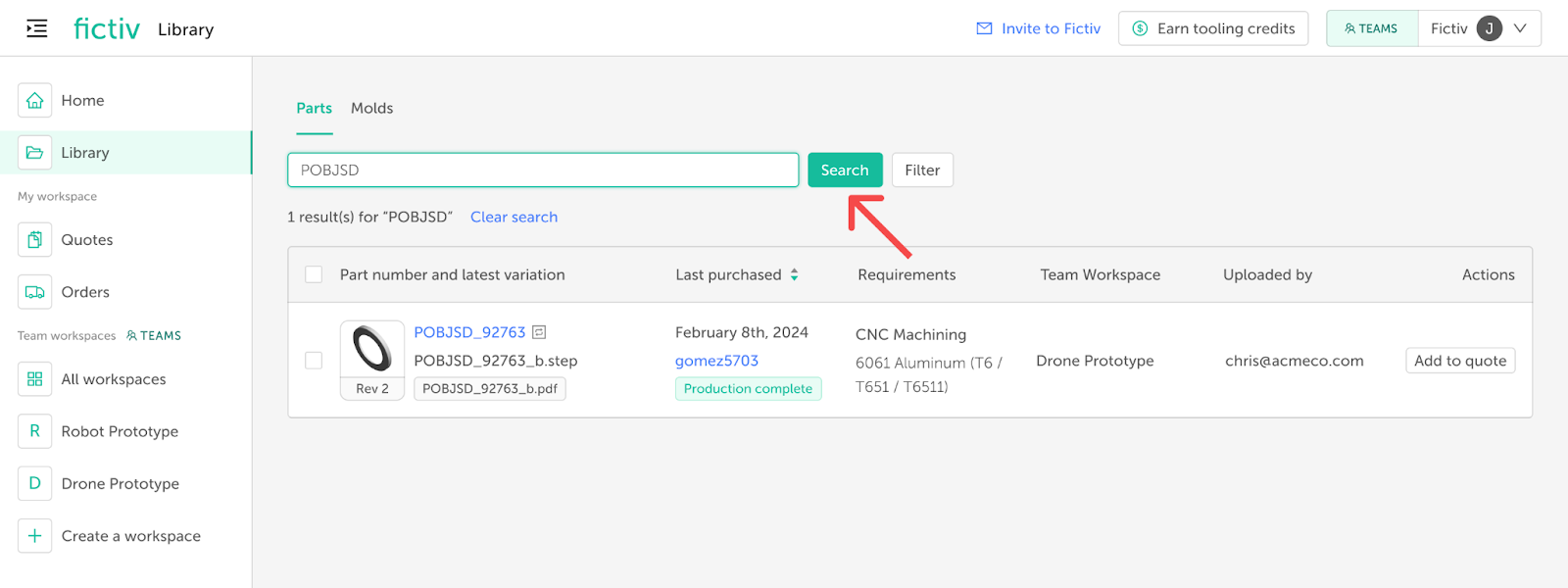
- Search bar: Search by part number, file name, order name, mold name, or PO number [Fig. 2].
- Filters: Use the filter drawer to narrow results by purchase date or purchaser [Fig. 3].

Viewing part details
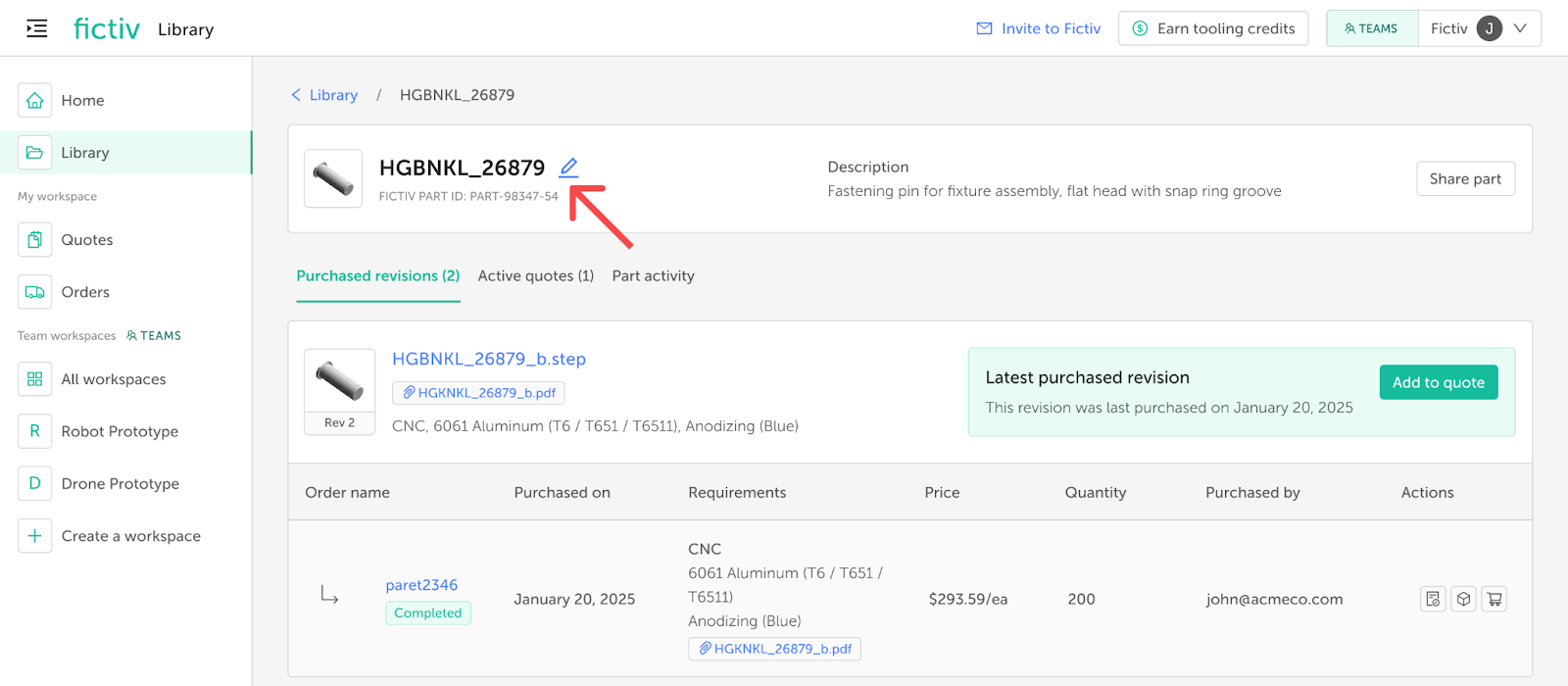
To view more detailed information about each part, click any part number in your Library to open its details page. The part number will be automatically derived from the part file name, but can be edited by clicking the edit icon in the header. You may also add a description to each part [Fig. 4].
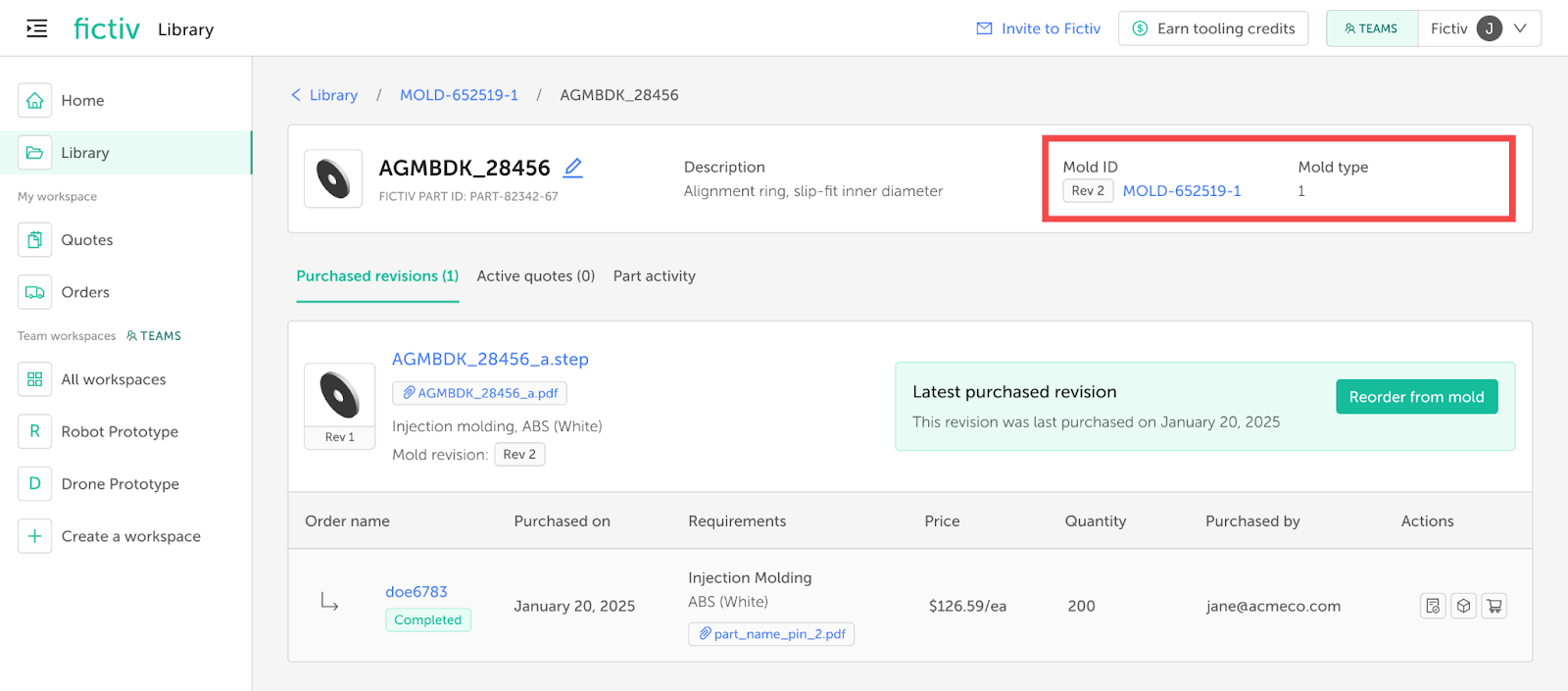
If the part is a tooling part, its details will also include the mold name and type, plus links to the mold’s details page and to other parts made with that mold [Fig. 5].
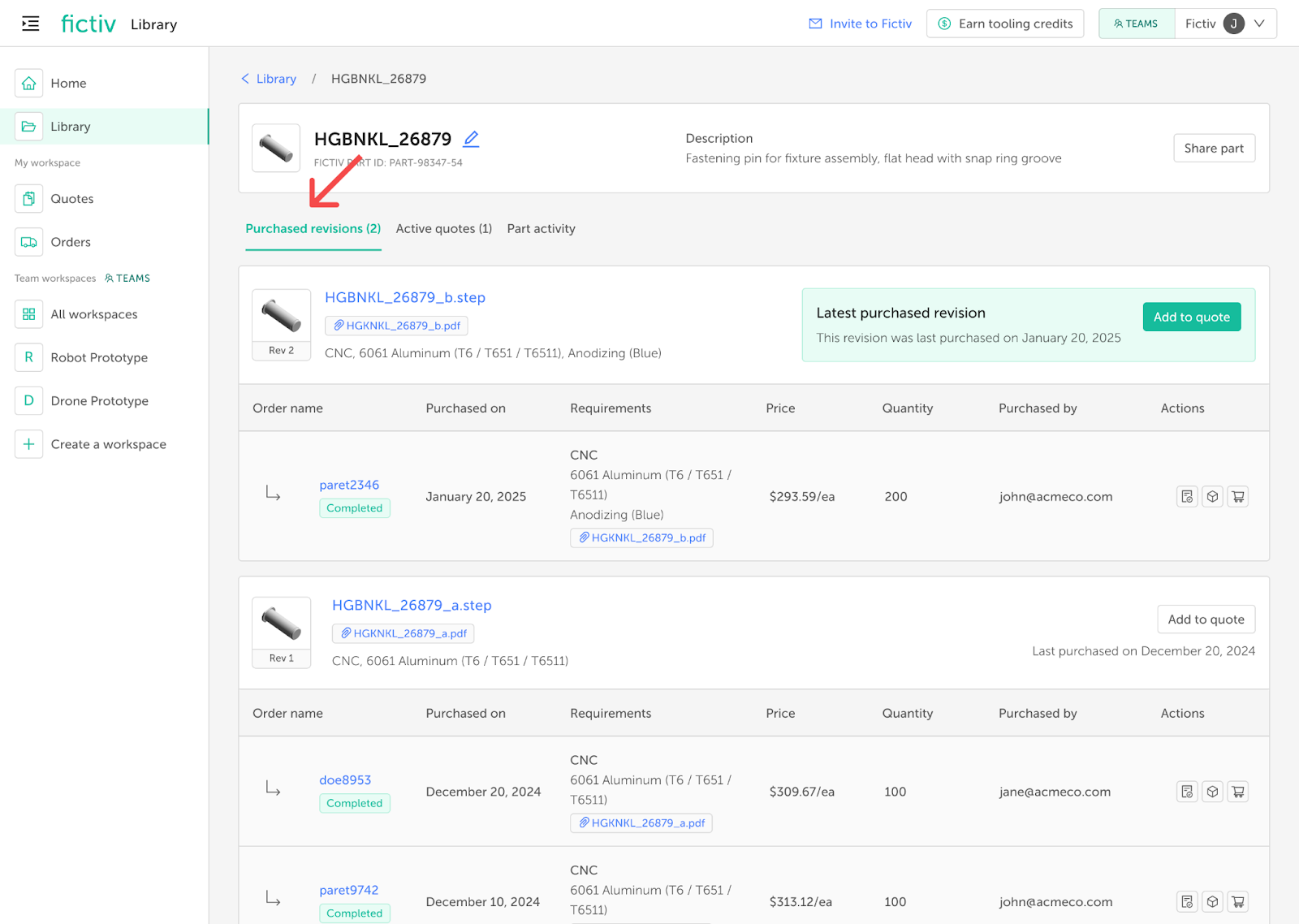
The Purchased revisions tab will show a list of every purchase of the part with the latest purchase at the top. For each purchase, you can view the order link, purchase date, configuration requirements, purchase price, quantity, who it was purchased by, manufacturing details, any available manufacturing feedback, and quickly reorder the part.
If you’ve purchased multiple revisions of the part, each revision will be shown with the latest purchased revision on top [Fig. 6].
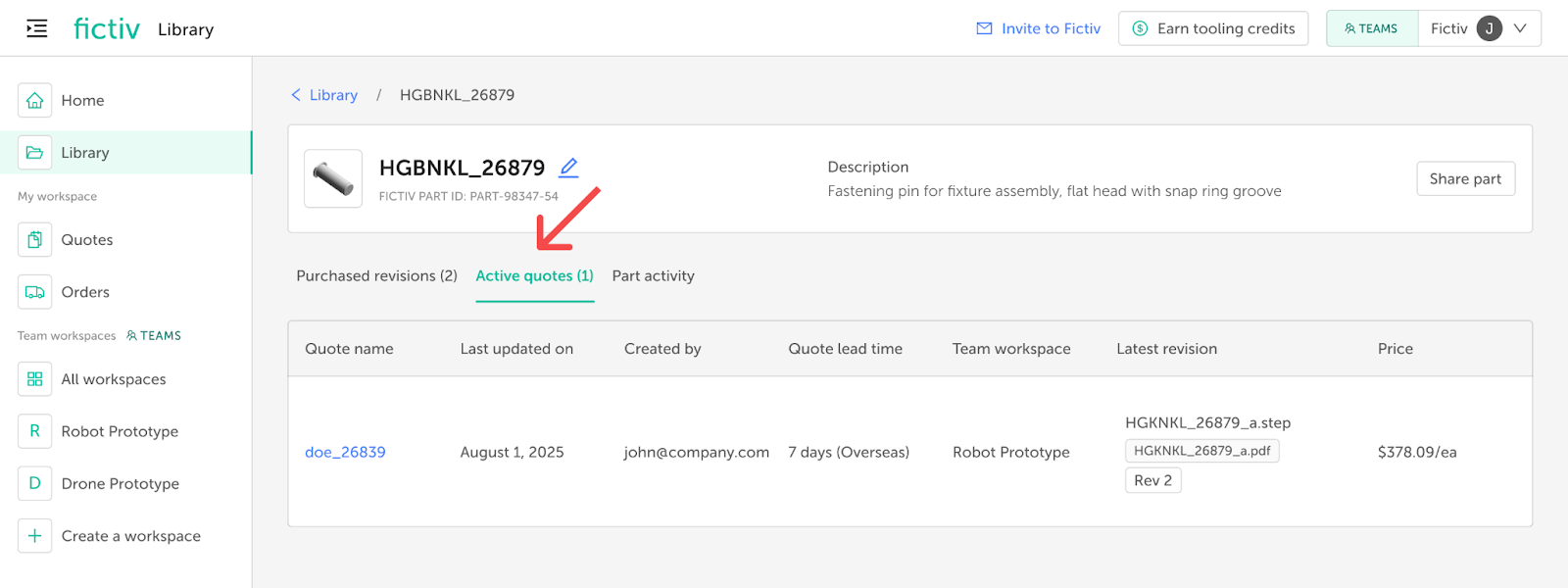
The Active quotes tab will show a list of all quotes that contain the part. For each quote you will see the quote link, when it was last updated, who the quote was created by, the current quote lead time, which revision of the part is being used, and the current part price [Fig. 7].
Note: If the quote is in a workspace that you do not have access to, you will not be able to access the quote. Learn more about sharing parts via team workspaces.
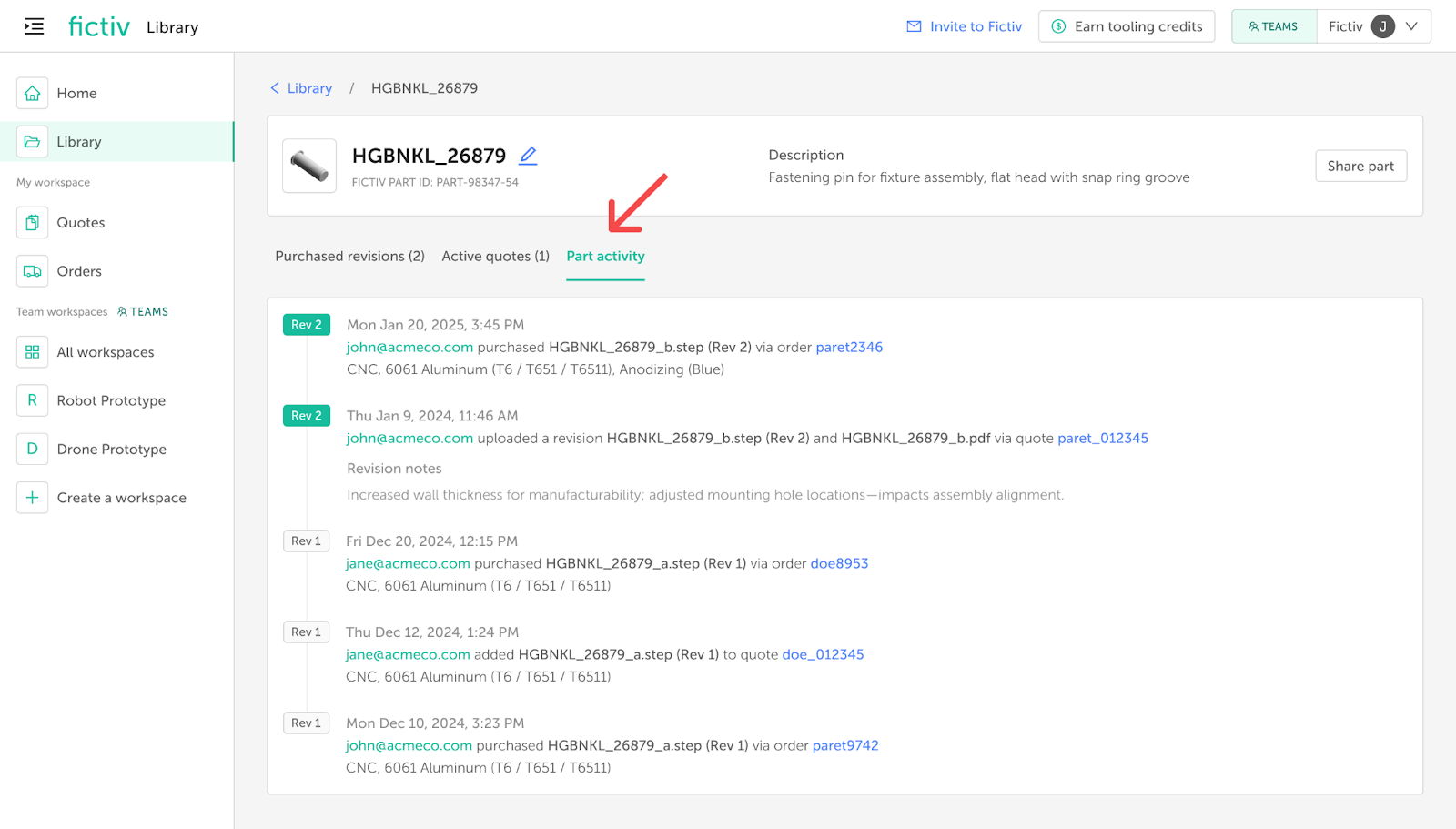
The Part activity tab will show a reverse-chronological timeline of all quoting and ordering activities for the part, including actions taken by others with access [Fig. 8].
Tip! If you see an orange icon next to a part number, it means the part was not purchased directly on the Fictiv platform [Fig. 9]. Thus, the requirements shown may not be an accurate representation of what you last purchased. You can still add this part to a quote to adjust the design or configuration as needed or contact your account representative for additional assistance.
